
Note: some visuals in this post are illustrative concepts, while others show live screenshots from Codex Cryptica.
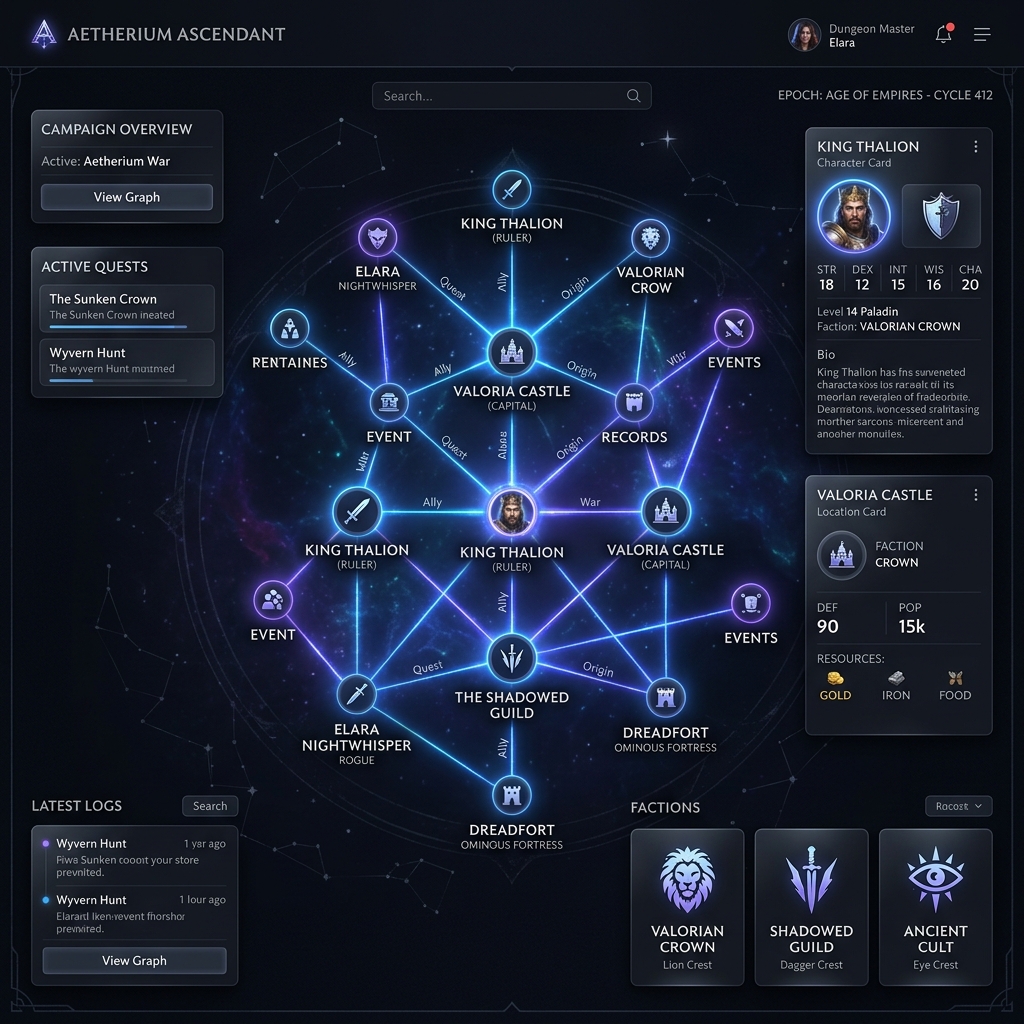
Codex Cryptica (CC) is a local-first, privacy-first tabletop worldbuilding campaign manager. It is designed to give you absolute sovereignty over your lore. Everything you create is saved directly on your own computer as clean Markdown files, meaning your worlds remain completely yours, fully functional offline, and safe from cloud platform lock-in.
Whether you are running a sprawling D&D sandbox, a tactical sci-fi campaign, or writing a novel, this guide will walk you through the core workflows of Codex Cryptica to help you get up and running.
Quick Start: Your First 5 Minutes
Follow this quick checklist to set up your first vault and see Codex Cryptica's core workflow in action:
- Initialize your Space: Click the folder icon in the top-left toolbar, select New Vault, and give it a name.
- Create your First Cast Member: Click the
+icon in the explorer sidebar, select the Character category, typeEldrinas the title, and hit Save. - Write and Link: Double-click Eldrin in the list to open his profile, click the Chronicle text area to edit, and type:
A legendary mage living in [[Kingdom of Aethel]]. - Confirm the Location: The name
Kingdom of Aethelwill automatically create a draft entity link. Click that link in read mode to create the new Faction/Location record. - Open the Knowledge Graph: Select the Graph tab in the main navigation. You will see Eldrin and the Kingdom of Aethel mapped visually, with a connecting edge automatically drawn!
1. Vaults & The Workspace
Your worldbuilding begins with a Vault—a dedicated workspace containing all of your campaign's entities, relationships, custom calendars, and spatial layouts.
- Absolute Sovereignty: Vault files reside locally in your browser's Origin Private File System (OPFS). They are not stored on external servers by default.
- Opening/Switching Vaults: Click the vault indicator or the folder icon in the top-left toolbar to switch campaigns or initialize a new vault.
- Importing existing campaigns: If you have existing markdown notes or JSON campaign data from other applications, you can import them using the Import utility to seed your Codex instantly.
2. Core Concepts: Entities, Chronicles, & Lore
Every person, place, or thing in your world is represented as an Entity.
- Entities: Classified by category (Character, Creature, Location, Item, Event, Faction, or Note).
- Chronicles: The primary, public-facing text field of your entity, written in Markdown. Think of it as the entity's main description or log (which can be styled and custom-renamed under different world themes as a Tome, Log, or Journal for flavor).
- Lore: Hidden metadata and secrets. The Lore section is only visible to the GM and is used by the Lore Oracle (AI) as confidential context. It is automatically stripped when sharing or publishing player-facing snapshots.
- Hierarchy & Nesting: In the left-hand Explorer panel, drag and drop entities to nest them (e.g., place a Tavern inside a City). CC automatically checks for recursive loops to prevent cycle errors, and deleting a parent automatically promotes child entities to the root level.
3. Writing & Bidirectional Linking
CC features a bidirectional link editor (built on Tiptap). Connecting your notes is seamless and instantaneous.
- Entity Auto-Links: In read mode, any text matching an entity's name or its registered aliases is automatically highlighted as a clickable link.
- Command Bar (Slash Commands): Type a forward slash
/in the chat input or the editor to trigger commands:/connect: Initiate high-speed linking./merge: Consolidate duplicate entries.
- Efficient Connecting:
- Visual Connector: Use the Chain Link icon in the graph toolbar.
- Quick Connect: Type
/connect \"Eldrin\" is the mentor of \"Kaelen\"to create a relationship. - Tab Sequence: Type
/connectand press Enter to open the wizard, then useTabto cycle from Source $\rightarrow$ Label $\rightarrow$ Target with keyboard auto-completion.
- Merging Entities: Consolidate redundant files via
/merge \"Old Notes\" into \"Kingdom of Aethel\". CC redirects all incoming/outgoing graph connections automatically. Type/merge oracleto open the AI Merge Wizard to synthesize the texts into a single cohesive lore chronicle.
4. Chronology & Custom Calendars
Browse your campaign history through a month-grid calendar, running agenda list, or linear timeline.
- Scroll-Wheel Date Picker: A center-align snapping wheel interface designed for desktop and mobile scroll-snapping.
- Granularity: Select dates by Year, Month, Day, or Anchor (intercalary festival days outside standard months).
- Keyboard Override: Click the keyboard icon on any wheel to type a year directly.
- Conflict Repair: If calendar settings are modified, the picker alerts you of invalid dates and prompts an auto-repair.
- Custom Campaign Calendars: Go to Vault Settings to disable the standard Gregorian calendar and define custom months, lengths, and epoch suffixes (e.g. "AF" or "BCE").
- Undated & Approximate Events: Approximate events are safely displayed under a special Undated/Approximate section in the Agenda to keep the calendar grid clean.
5. Campaign Views: Graph, Canvas, Map, Calendar, & Table
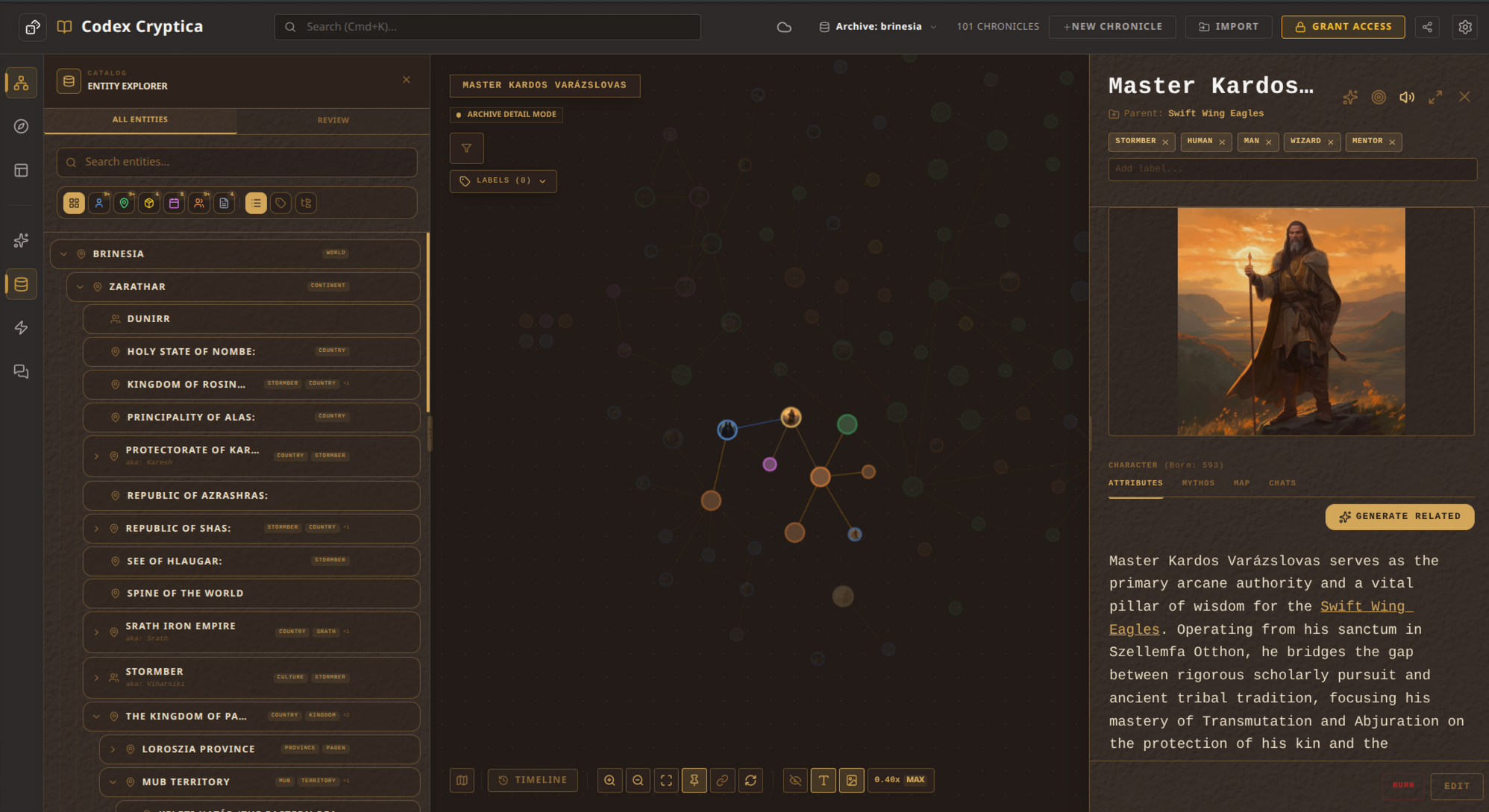
Codex Cryptica provides multiple ways to visualize and interact with your lore, allowing you to swap perspectives on the fly:
- Interactive Knowledge Graph: The default web showing how character networks, factions, and locations connect. Use
Scrollto zoom,Dragto pan, and click a node to open its details. Swappable layout modes (Redraw, Stable Pin, Orbit, Timeline) help organize your space. - Spatial Canvas: A whiteboard-style workspace where you can manually place cards, write notes, draw lines, and group entities visually. Perfect for plot-mapping or designing "murder boards."
- Tactical Map (VTT): Upload high-resolution maps, drop interactive tokens, track positions, draw measurements, and manage player fog-of-war for combat or region exploration.
- Chronology Views: Browse campaign history via a month-grid Calendar, a clean running Agenda list (which houses undated or approximate events), or a linear chronological Timeline.
- Entity Table View: A spreadsheet-style grid to quickly sort, filter, and review attributes and metadata across all entities in a high-density, structured list.
Graph Interaction Tips
- Connect Mode: Press
Cto toggle manual connect mode (click a source node, then click a target node to build a relationship edge). - Node Labels: Press
Lto toggle node titles on and off. - Fog of War: Mark nodes or entire sub-branches as GM-only/Private. These nodes fade in your view and are completely omitted from player-facing exports.
6. The Lore Oracle (AI Assistant)
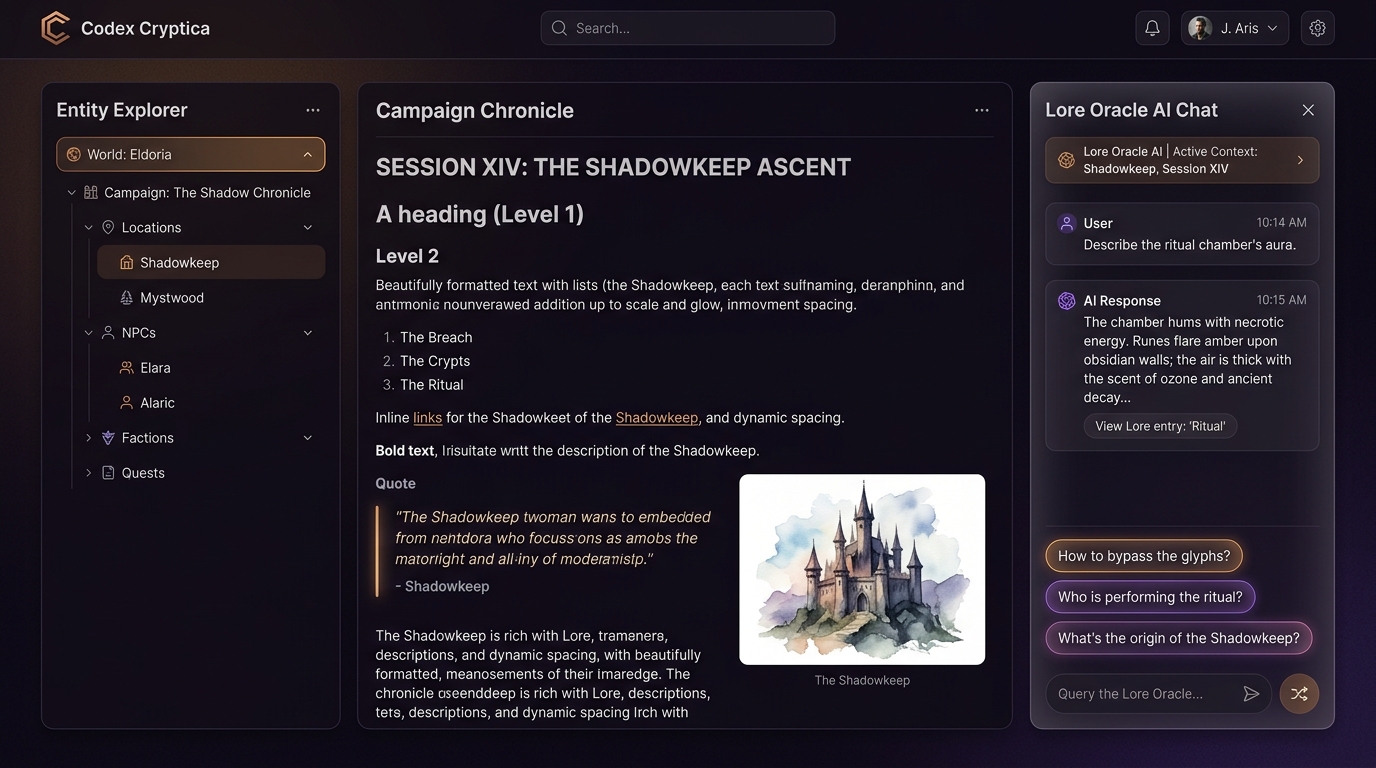
The Lore Oracle is your co-author and worldbuilding assistant, powered by OpenAI/Luna.
- Context-Aware Chat: Unlike generic AI chatbots, the Oracle retrieves relevant entities, notes, and local neighbor nodes from your graph to ground its responses in your specific world lore.
- Keys: Configure your private OpenAI/Luna API key in Settings (stored locally in IndexedDB) or use the Shared Key (if configured by the host).
- Oracle Commands:
/draw [subject]: Generate an image for an entity using your world's custom Art Direction metadata or theme styles./revise: Instruct the Oracle to rewrite or polish a selected entity's Chronicle./create [concept]: Ask the Oracle to draft a new entity.
- Guest Character Chat: Let players chat in-character with Characters. GMs can review transcripts to turn conversational roleplay into official lore.
7. Campaign Generators & Sandbox Hub
Quickly populate your world with rich lore, even when offline.
- Campaign Generators: Click the Wand icon in the explorer to generate Characters, Creatures, Locations, Items, Factions, or Events directly inside your active campaign vault.
- Local vs. Co-Author Mode: Online, the Oracle writes custom descriptions. Offline, the generators fall back to built-in local random tables, guaranteeing you always get a result.
- Generator Hub: Swap to the standalone Generator Hub to generate content in a sandbox workspace. Review, edit, and tweak drafts, then hand them off directly into your active campaign.
8. Syncing & Sharing Player Snapshots
- Local Disk Sync: Use the File System Access API to automatically mirror your browser's OPFS vault to a directory on your local hard drive.
- Google Drive Cloud Sync: Sync your campaigns across devices.
- Publishing Guest Snapshots: Share your world with players without spoiling the plot. Under Settings > Publishing, publish a read-only snapshot of your campaign to Cloudflare R2.
- Redacts all GM-only/Private nodes and maps.
- Redacts the
LoreandArt Directionfields. - Replaces links to secret files with
[Redacted].
Ready to Build?
Codex Cryptica is designed to step out of your way and let you build immersive settings. Start by creating a vault, sketching out a handful of core characters and locations, and let the graph and the Oracle help connect the dots!