A hex map is a good start. A hex crawl needs more: somewhere to write down that this hex is forest, that the party has searched it, what you decided lives there, and which villages and NPCs belong to it.
Hex Crawl mode gives every hex on a map a small notebook. It is built around the loop a hex crawl actually runs on: the party sees a hex, walks into it and finds out what is there. Then what they found becomes part of your world.
Only the Game Master sees any of it. Players and guests never see hex notes, terrain, drafts or explored markers.
Turning it on
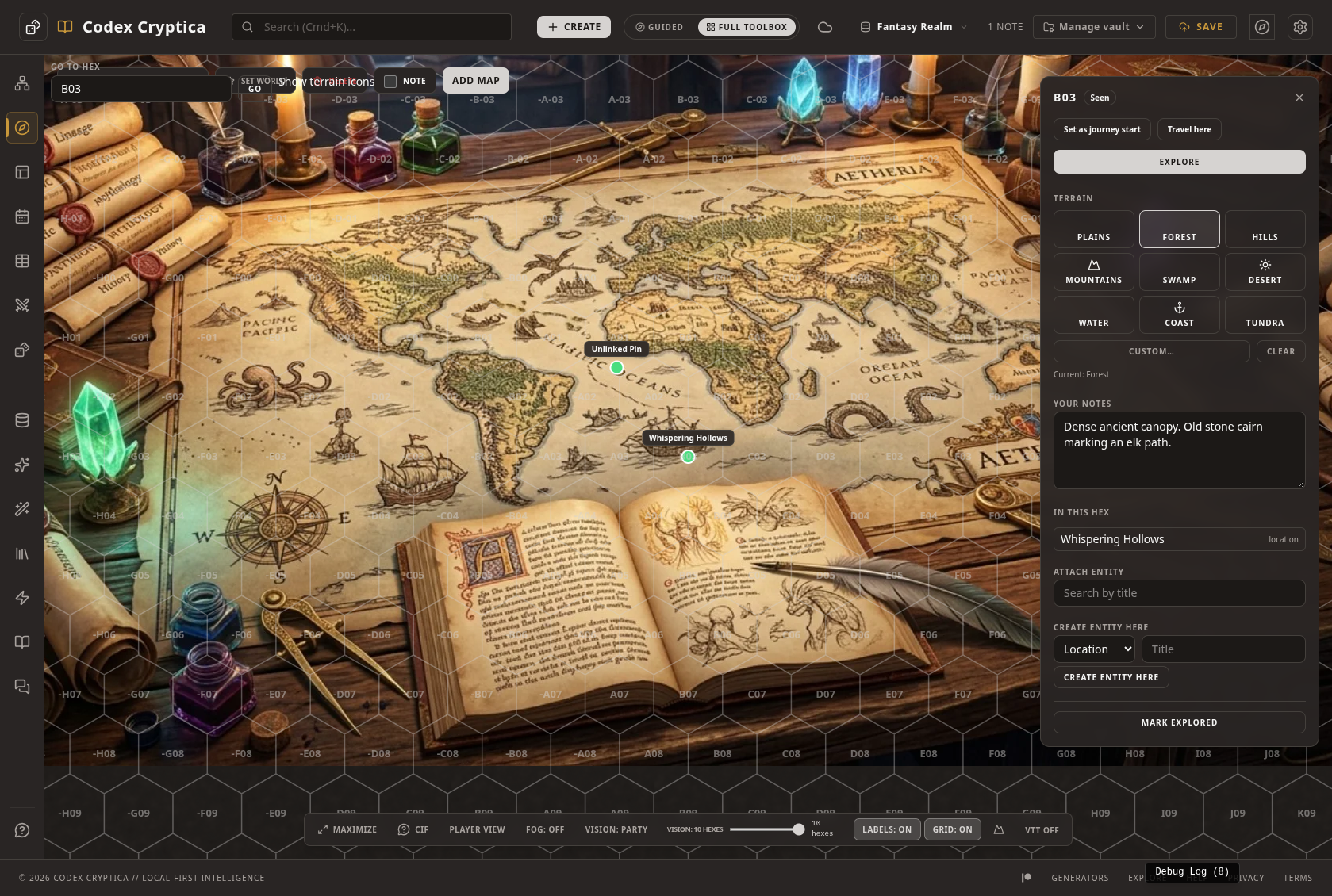
Open the map, then Grid Settings, and pick Hex (Pointy) or Hex (Flat) as the grid type. A Hex Crawl mode switch appears for hex grids only. Turn it on and apply the grid.
You can do this with the VTT open or closed, so you can prepare a map before a session. Turning the mode off keeps your hex data, and turning it back on brings it all back.
The hex panel
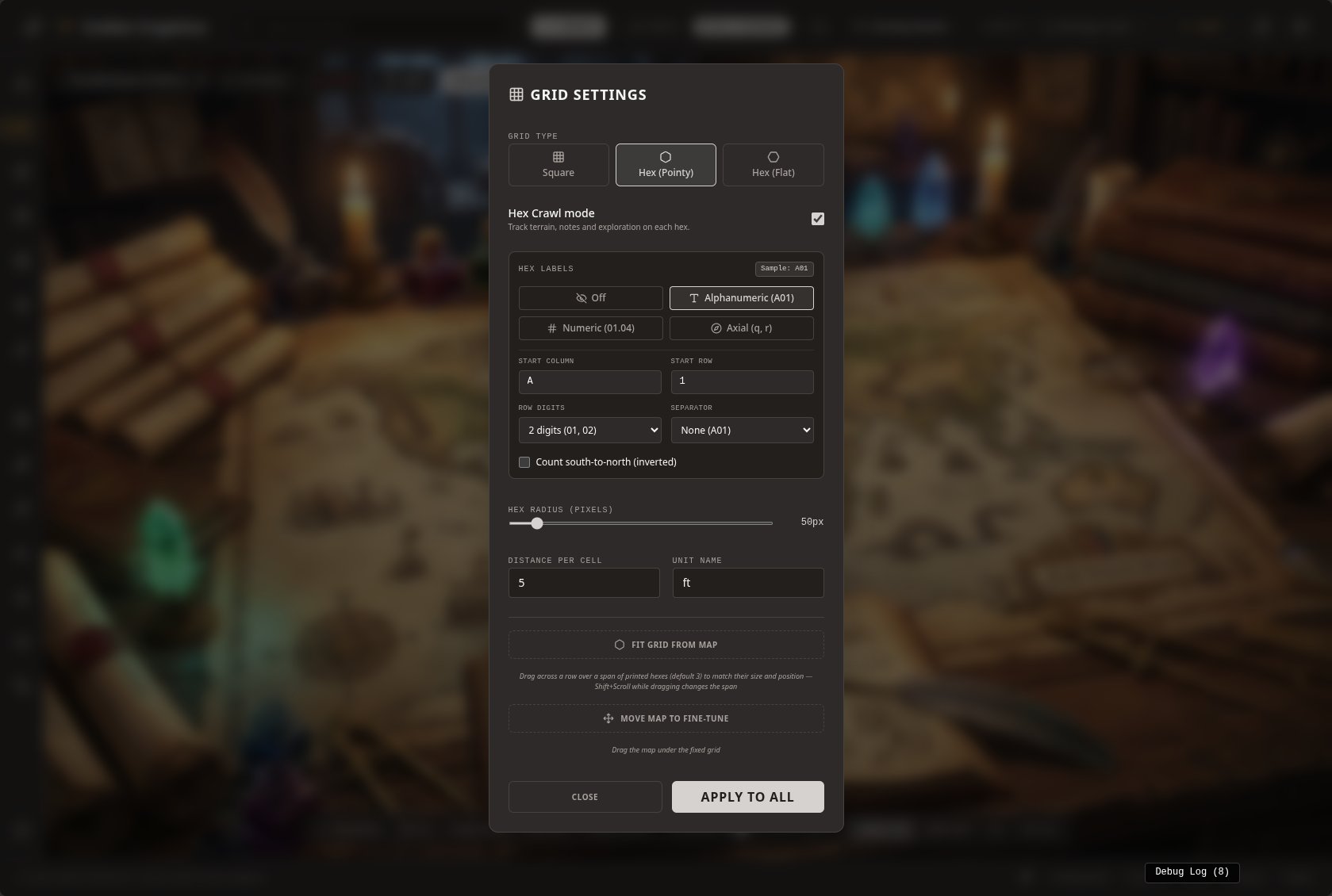
Click a hex with no pin or token on it and a panel opens for that hex. From top to bottom it holds:
- the hex label, in your map's label style (alphanumeric
B03, numeric01.04or axial), with its state - Explore, the main action
- Terrain: plains, forest, hills, mountains, swamp, desert, water, coast, tundra, or a custom name
- Your notes, plain text for whatever you want to remember
- AI-drafted, a separate section that appears only when there is AI text
- In this hex, the entities pinned here, with Attach entity and Create entity here
- Mark explored or Mark unexplored
Clicking a pin or token still does what it always did. If you would rather skip the mouse, Go to hex in the map controls takes a coordinate such as B03 and opens that hex. This hex in the token and pin menus opens the hex a selected token or pin is standing in.
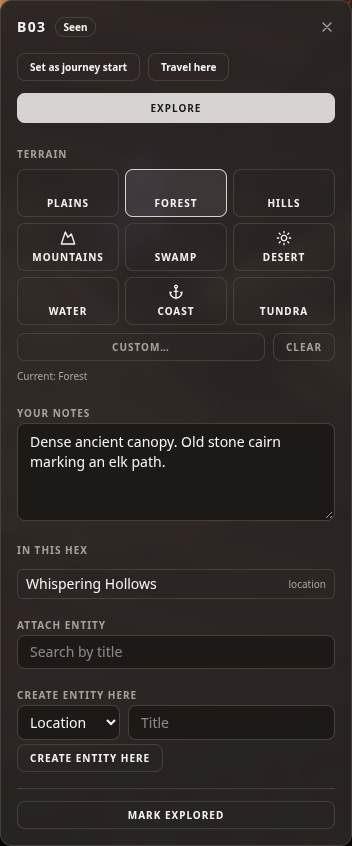
Terrain icons on the map are optional. Turn on Terrain icons in the map display options to see a small icon on every hex that has a terrain. They are off by default and the choice is remembered on that device.
Unknown, Seen, Explored
Every hex is in one of three states:
- Unknown: hidden by fog of war, not explored.
- Seen: showing through the fog, but nobody has been there.
- Explored: the party has been there, or you marked it by hand.
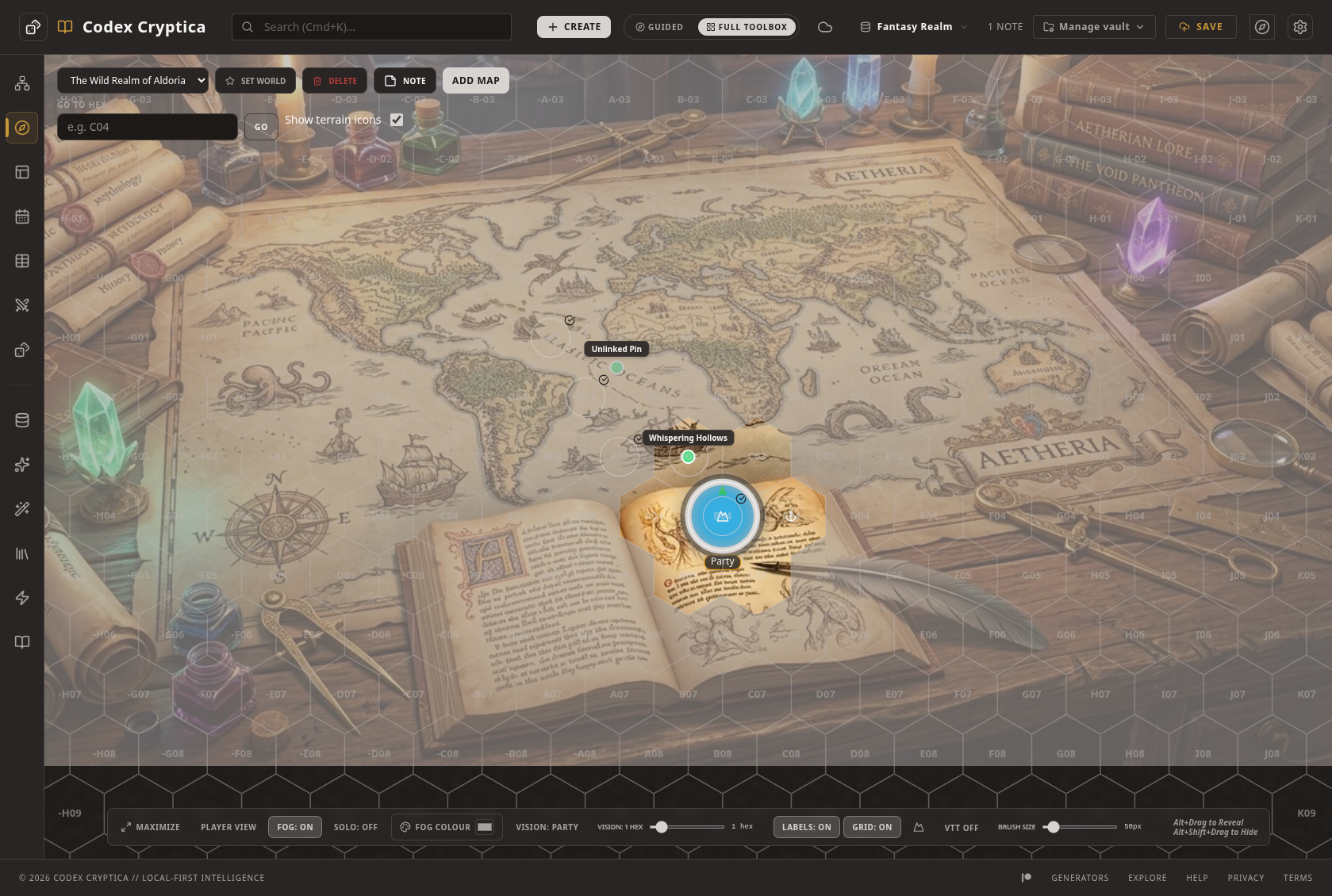
When a party token ends a move in a hex, that hex becomes Explored. Only the hex where the move ends counts, so a path across the map does not explore every hex it crosses. Explored hexes carry a small marker that only you can see, and each time one is explored the session journal records it with the hex label and terrain.
Explore: stocking a hex when the party arrives
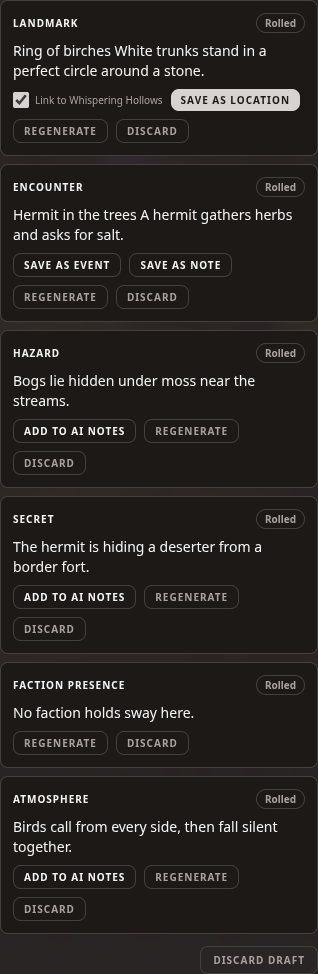
This is the part that saves prep. Explore drafts what is in a hex in six parts:
- Landmark: a place or feature worth finding
- Encounter: something that happens or waits there
- Hazard: a danger
- Secret: something hidden
- Faction presence: who holds sway here
- Atmosphere: how the hex feels
The draft is grounded in your world. It sees the hex's terrain and notes, the hexes within two steps, the nearest locations and factions, the map's region, the entities already in the hex and your campaign's basic context. Your full vault is never sent, and nothing is sent until you press Explore.
Each part has a badge, AI-drafted or Rolled, and you decide what happens to it. Keep it, Save it, Regenerate just that part, or Discard it. A saved landmark becomes a location and a saved encounter becomes an event, or a note if you prefer. They are pinned at the centre of the hex, and saved with a proposed link to the nearest location within two hexes. That link is ticked by default and you can untick it before you save.
The draft never touches Your notes. Hazards, secrets and atmosphere go into the AI-drafted section, so you can always tell what you wrote from what a model suggested. If you close the panel or reload before saving, the draft waits on its hex until every part is saved or discarded.
No AI? Roll on the tables
With AI Disabled turned on in Settings, Explore rolls on built-in terrain tables instead. You get the same six parts and review and save them the same way. If an AI draft fails, you get a plain message with Try again and Roll on terrain tables. A hex crawl should never stall at the table because a service is down.
Hex crawling solo
In solo play, when the party moves into an unexplored hex, an offer appears near the travel readout: Explore or Not now. It never starts by itself. The hex becomes Explored either way, so declining costs you nothing.
Your grid travels with the map
Hex notes are tied to grid positions, so the grid is now saved with the map: type, size, offsets and label style. It follows the map through sync, backup, restore and export. Maps set up on an older version keep their grid, and it is saved the first time you open them.
If you change the grid type or size, or move the map or refit the grid, while hexes already hold notes, the app asks first and says how many hex records would stop lining up. Cancel leaves everything as it was.
What stays private
Hex notes, terrain, drafts and explored markers are GM-only. Connected players see the map and fog exactly as before. Guest vaults and published bundles leave hex data out, and Explore is not available in a guest vault.
Where to go next
The full reference is in the Help panel under Hex Crawl Mode. If you are weighing hexes against a point crawl for your next campaign, our answer on point crawls versus hex crawls is a good companion read.