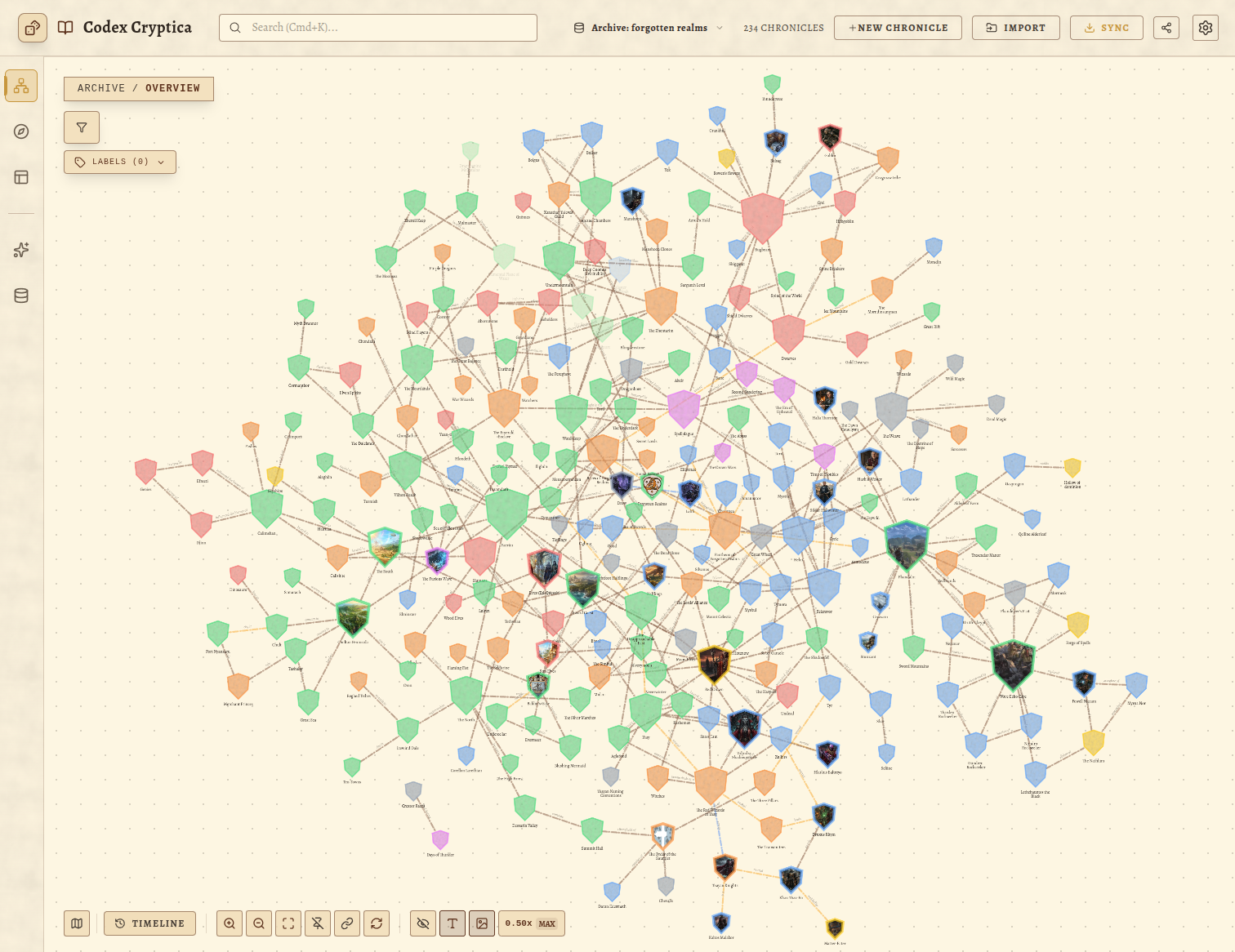
We’ve all been there. Your archive is overflowing with three hundred notes on NPCs, locations, and forgotten historical scraps. You know the "killer hook" is buried in there somewhere, but finding that specific thread during a live session feels like digging through a digital junk drawer in the dark. It’s frustrating, slow, and it kills the creative flow.
In Codex Cryptica, we solved this by moving past simple lists. We built a dual-engine system: Labels and Smart Filters. When you use them together, they don't just organize your chaos—they breathe life into your world, turning static notes into a living web of discovery.
The Rigidity of Folders
Traditional note-taking apps force you into folders. But folders are brittle. Does a "Corrupt Guard" belong in the NPCs folder or the City Watch folder? Folders make you choose, and in world-building, choosing is losing.
In the Codex, an entity can be many things at once. This is where labels act as the connective tissue.
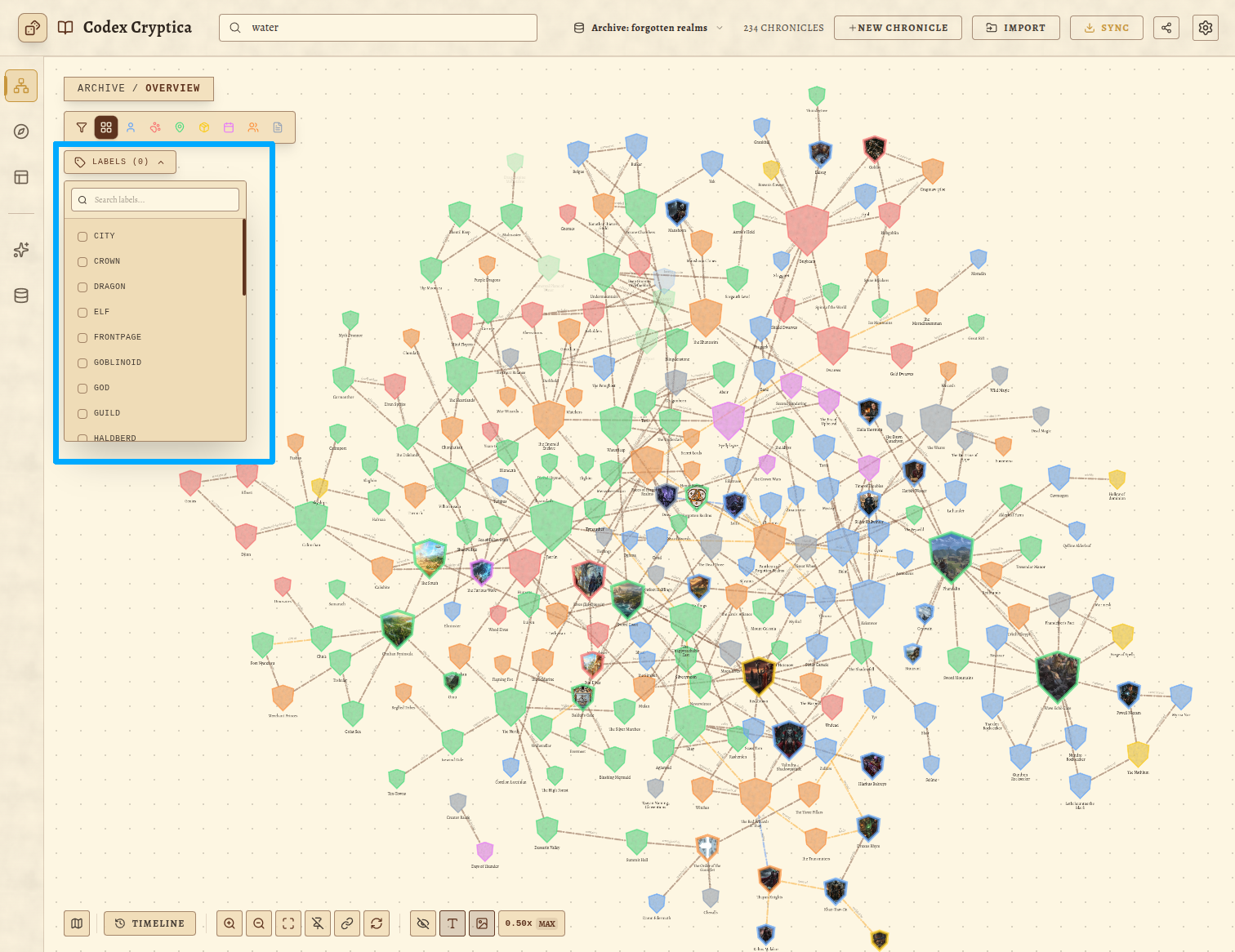
1. Labels: Adjectives for a Living World
Think of labels as the "traits" or "moods" of your world. While an entity has a fixed Type (like Person or Location), labels describe their fluid state, their hidden allegiances, or their dramatic role.
- Shifting Allegiances: Instead of moving a file when a tavern is taken over by a cult, just swap a label. It starts as
#Neutraland evolves into a#Rebel-Stronghold. - Session Heat-Maps: Use labels like
#Activeor#Session-22to instantly see which parts of your world your players are currently "heating up." - Thematic Threads: Mark every NPC involved in a plot with a custom label like
#The-Crimson-Heist. One click on that tag in your sidebar pulls the entire conspiracy out of the shadows, no matter their job or location.
2. Smart Filtering: Tuning the Signal
The real power of discovery happens in the Knowledge Graph. We designed the HUD to handle complex "Multi-Select" queries that feel like tuning a radio to the exact frequency you need.
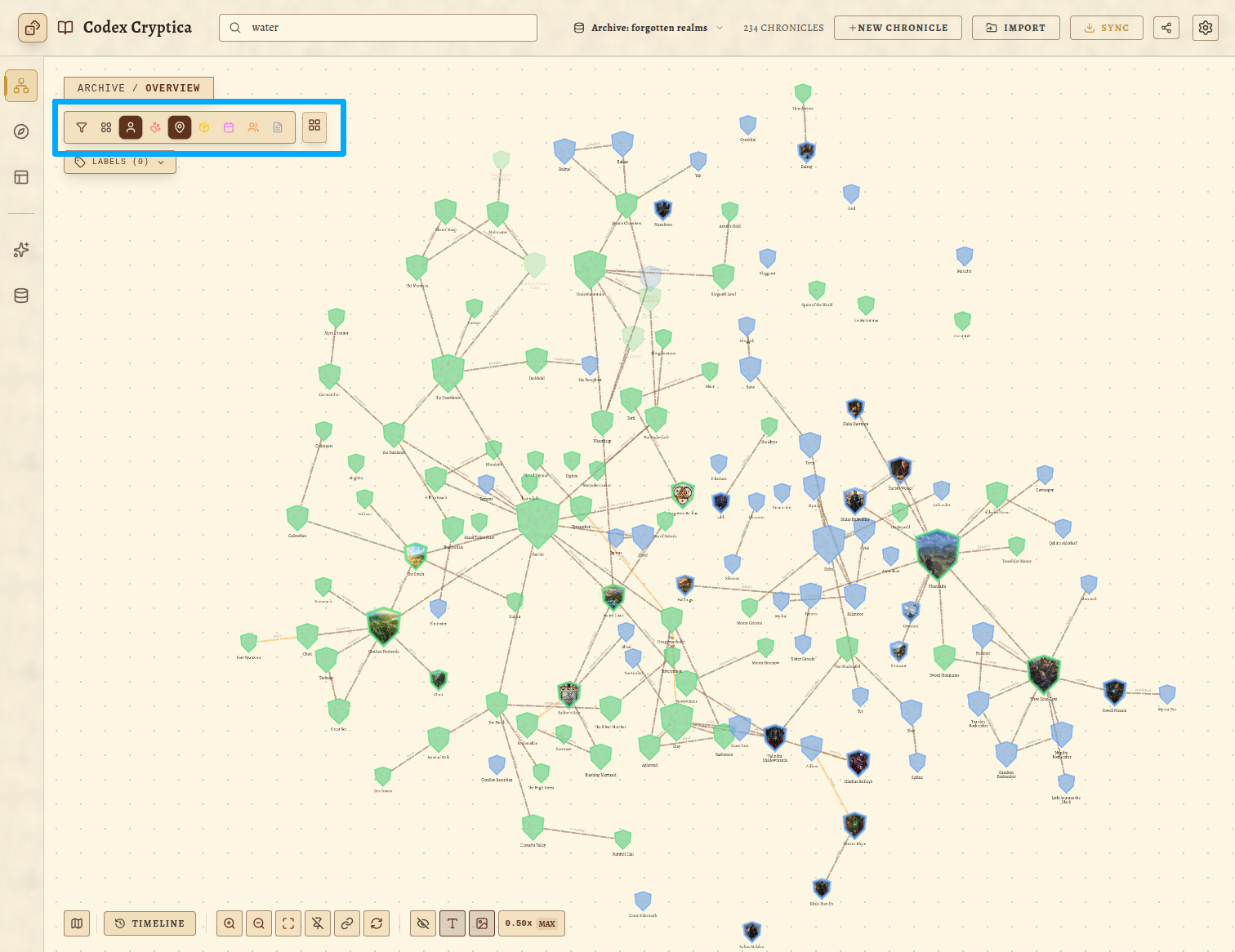
By toggling specific types or labels in the Graph HUD, you can clear the noise and see the signal:
- "I need a tactical map for this tavern": Select
[Map]+[Location]. - "Who is actually in this city right now?": Select
[Person]+[Location]and watch the web illuminate the residents. - "What rare items are held by this faction?": Filter by
[Item]and click your faction label.
This isn't just about finding data; it's about seeing the gaps. If you filter for [Person] + #High-Society and only three names appear, you’ve just discovered exactly where your world-building is thin.
3. Discovery via Visual Flow
When you apply a filter, the graph doesn't just list results—it isolates them. The rest of your world dims, and the filtered entities begin to glow, revealing the "invisible lines" of influence.
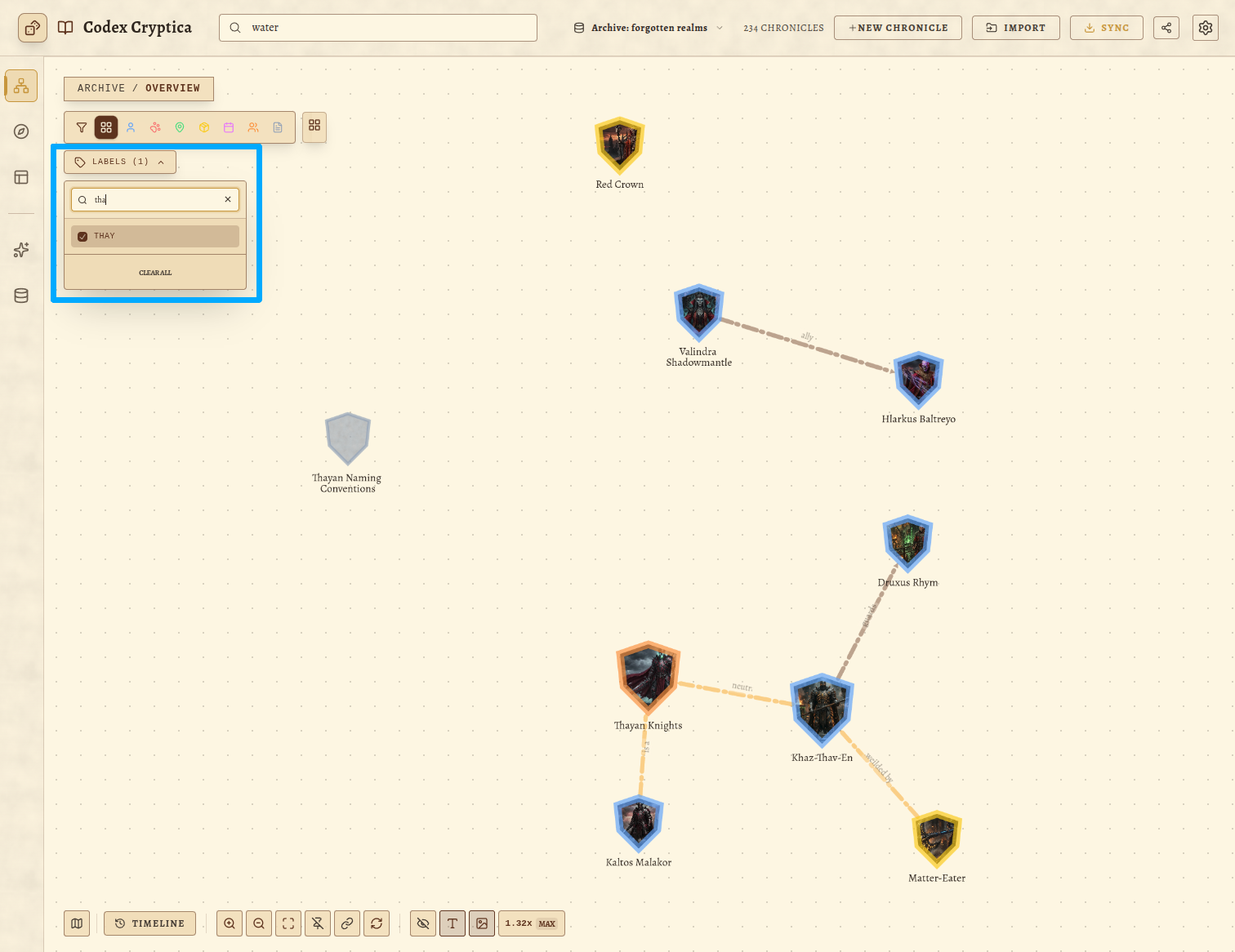
- Spotting Clusters: Use labels like
#Suspectto see if all your potential villains are tethered to the same noble house. - Isolating Bloodlines: Filter by a family label and watch the graph prune away the world until you see the pure, uninterrupted skeleton of that dynasty.
4. AI Discovery: The /plot Command
Once you've used labels and filters to slice your world into a high-definition focus—say, all the NPCs in the #Underworld—you can use the Lore Oracle to explore the "Why."
The /plot command is your narrative analyst. It's most powerful when you've already "narrowed the field" using filters. By telling the Oracle exactly which network to look at, you get far more relevant dramatic tensions.
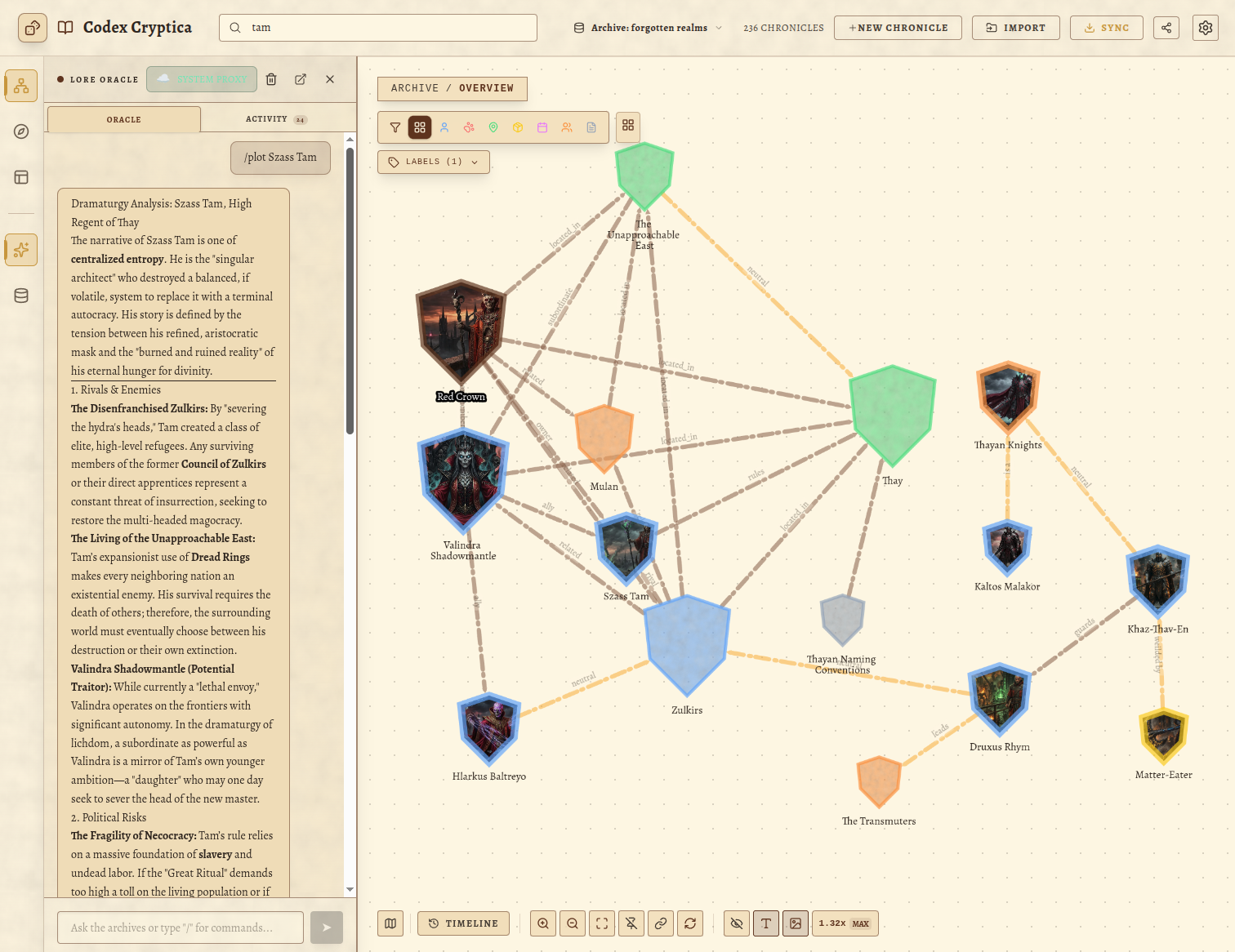
- Analyze Friction: Filter for
#The-Rebellionand then type/plot [Leader Name]. The Oracle will scan the existing web of filtered connections to identify rivals, political risks, and hidden secrets that naturally emerge from your data. - Uncover Dramatic Hooks: Use filters to see the "What" (the locations and actors), and use
/plotto spark the drama. Ask:/plot tensions at [The Black Iron Tavern]to see how its links to local factions create a powder keg of possibilities.
5. Pro Tip: The "Murder Board" Workflow
When you find a group of related entities through a filter or a /plot analysis in the Graph, you can turn them into a Spatial Canvas with a single click.
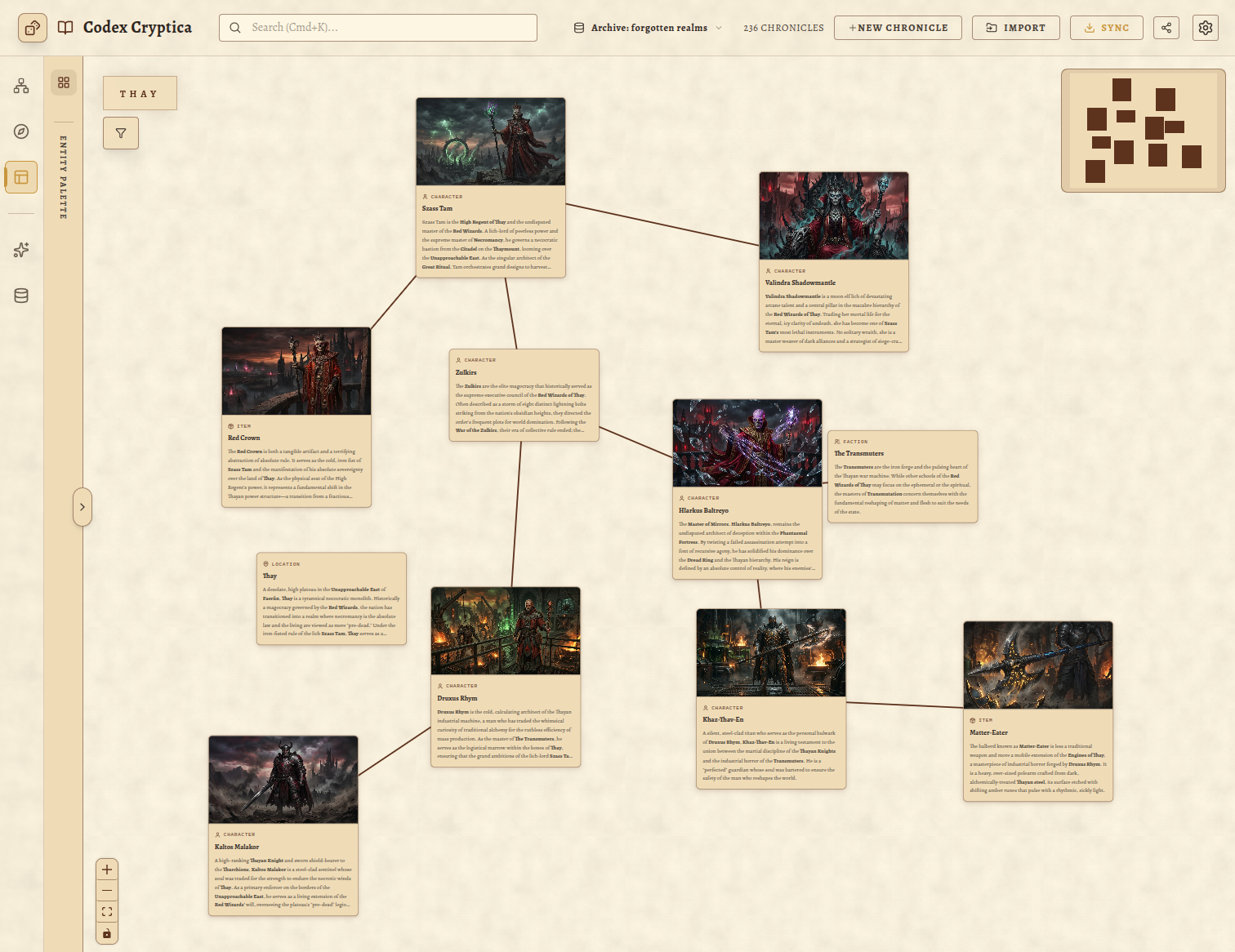
- Apply your filters in the Knowledge Graph to find your "target group."
- Click the "Add all results to workspace" button (the Grid icon) that appears in the Graph HUD whenever a filter is active.
- Switch to your active Canvas and draw manual links to represent the power struggle you just uncovered.
You’ve just turned a complex graph query into a tactical "Murder Board" for your next session.
Summary: Build for Discovery
World-building is a marathon, not a sprint. By using Labels to describe the "What," Filters to ask the "How," and the Lore Oracle to explore the "Why," you turn your Codex from a dusty archive into a living engine of story.
Stop searching for your notes. Start discovering your world.
Ready to organize your chaos?
Want to learn more about visual world-building? Read our post on Spatial Intelligence.