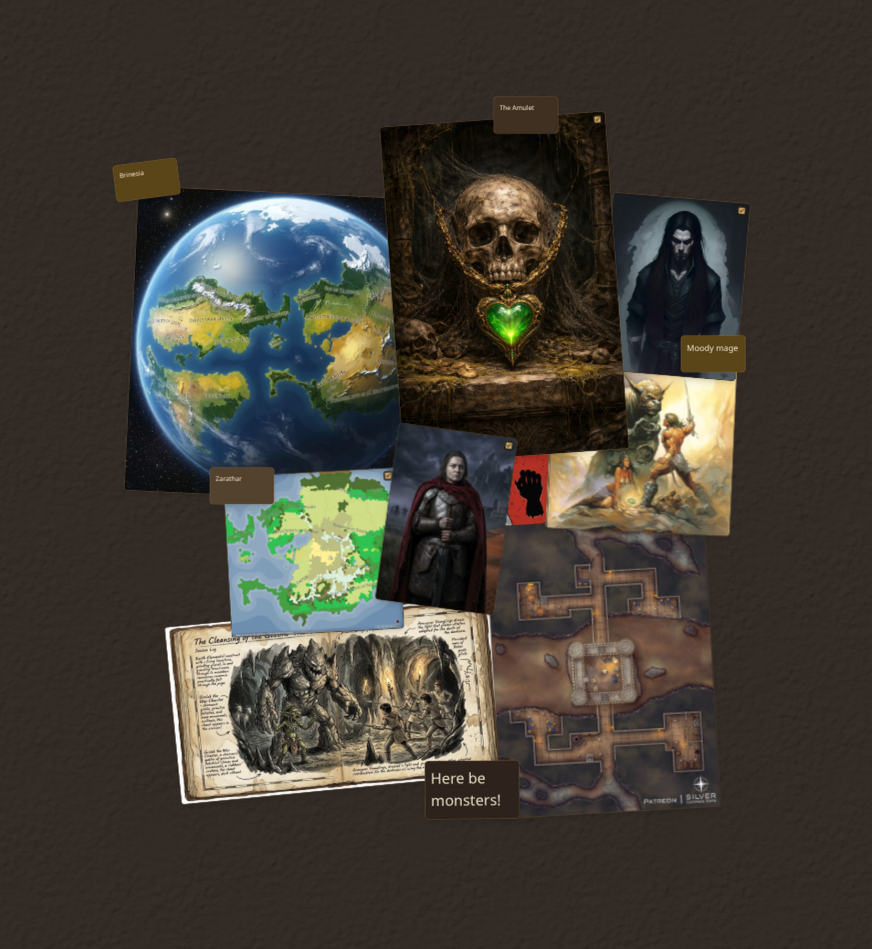
Worldbuilding rarely starts as a clean, alphabetical list.
When you sit down to plan a new campaign arc, brainstorm a murder mystery, or design a sprawling criminal syndicate, ideas don't arrive neatly sorted into folders. They arrive in bursts: a scrap of dialogue here, an unanswered question about a corrupt magistrate there, a hastily sketched travel route between two frontier forts, and three half-baked factions vying for the same ancient relic.
If you try to force those messy, nascent thoughts straight into rigid databases or deep folder hierarchies, the momentum stalls. But if you keep them scattered across random scratchpads and sticky notes, they vanish the moment your players head in an unexpected direction.
The Canvas is built to bridge that gap.
It is an infinite, freeform visual workspace integrated directly into your Codex. It gives you the tactile freedom of a physical corkboard or murder board—without losing the power, persistence, and deep linking of a structured lore vault.
1. What is the Canvas?
The Spatial Canvas is an open-ended tabletop desk where your notes, characters, locations, images, and ideas live side-by-side in 2D space.
Unlike the automated Knowledge Graph (which algorithmically organizes relationships derived from your text), the Canvas gives you 100% manual, intentional control. Every card position, cluster, connection line, rotation angle, and sketched stroke is placed exactly where you want it and saved directly into .canvas documents in your vault.
- Spatial Intentionality: Proximity has meaning. Place rival houses on opposite sides of the board, put key suspects in a central ring, or cluster regional settlements by geographic proximity.
- Infinite Zoom & Pan: Move effortlessly from a bird's-eye overview of an entire political landscape down into the gritty details of a single dungeon room.
- Theme-Adaptive UI: Whether you run gritty sci-fi with glowing CRT terminals or dark fantasy with weathered parchment, your canvas, minimap, and cards adapt seamlessly to your active vault theme.
- Vault-Native
.canvasFiles: Everything is stored locally on your machine in open, parseable files. No external servers, no cloud lock-in.
2. Why Use a Visual Workspace for Worldbuilding?
Text is sequential, but worlds are spatial and networked.
When you prep a tabletop campaign or write a complex setting, your brain relies heavily on spatial memory—remembering where an idea sits relative to other ideas. A visual canvas solves three fundamental problems that traditional note apps struggle with:
- Lowering Cognitive Load During Prep: Instead of holding a 10-person conspiracy entirely in your working memory while clicking through tabs, you can see the entire web of tension at a single glance.
- Embracing Non-Linear Thinking: You don't have to decide whether a new NPC is "ready for canon." You can drop a quick note card on the board, connect it with a tentative labeled link, and let the relationship evolve organically.
- Bridging Brainstorming and Execution: The canvas is a staging ground. You can brainstorm messy drafts, group random generator outputs, and promote only what survives your prep into permanent lore entities.
3. Five Practical Canvas Workflows
The Canvas isn't just a generic whiteboard—it is built specifically for tabletop GMs, worldbuilders, and storytellers. Here are five ways GMs use it every day:
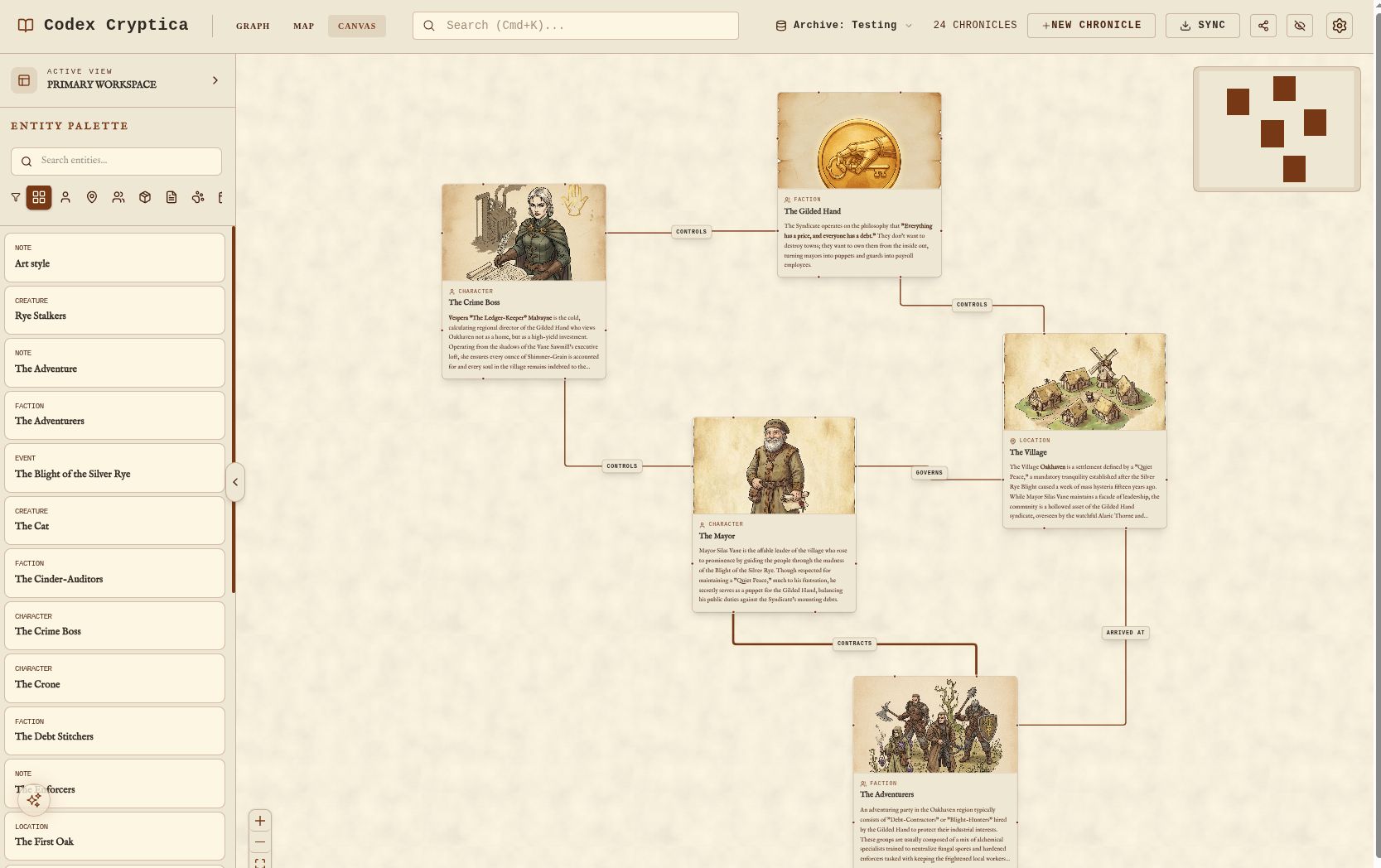
1. Plot & Adventure Flowcharts
Plan branching questlines, heist decision trees, or multi-stage dungeon progressions. Connect encounter nodes with custom labeled edges like "If players negotiate" or "If the alarm sounds", making complex adventures easy to navigate during live play.
2. NPC & Faction "Murder Boards"
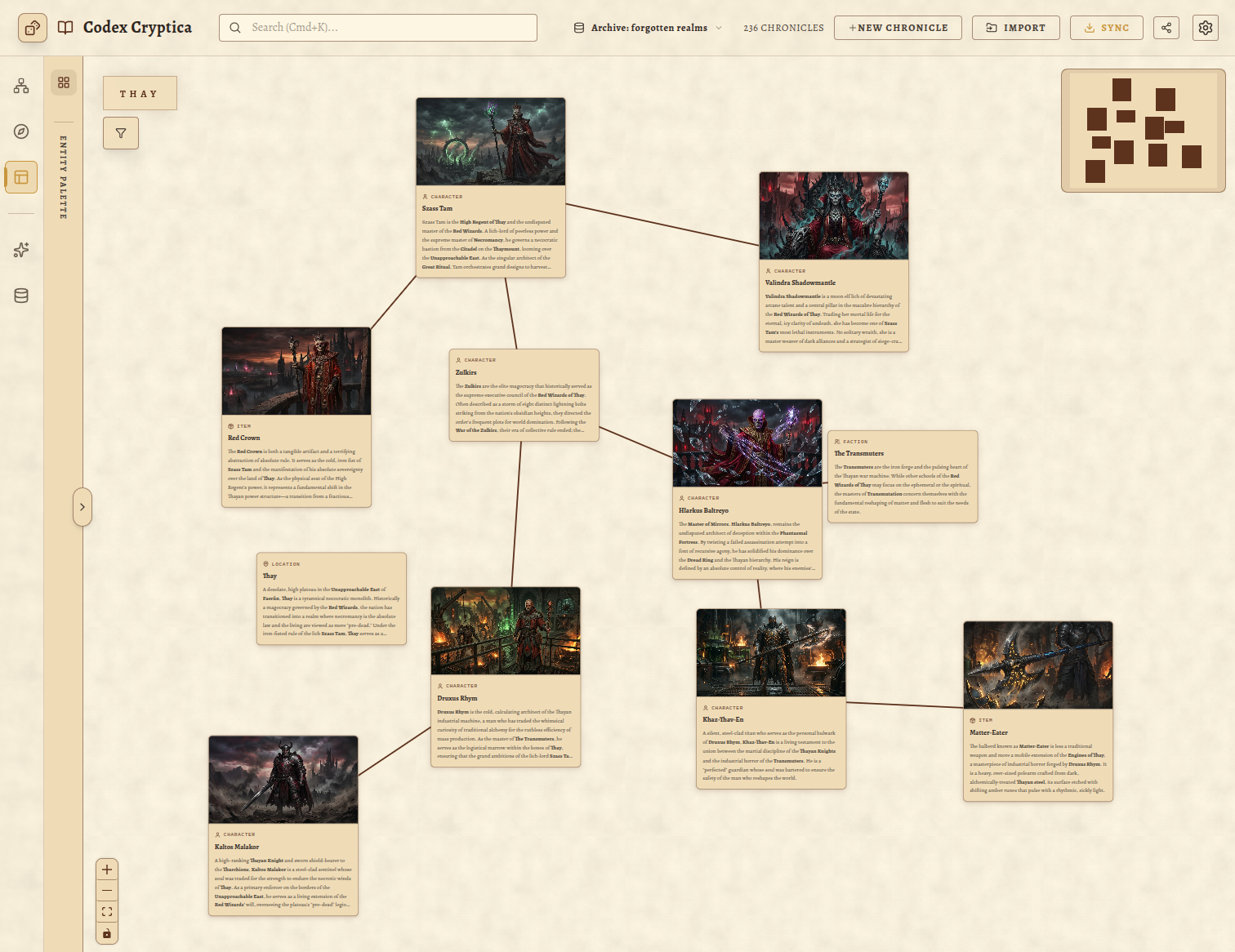
Build conspiracy webs, political hierarchies, and family bloodlines. Place the crime boss or guild master at the center, rotate subordinate lieutenants outward, and draw colored relationship lines to highlight blackmailed allies, rival spies, and secret benefactors.
3. Location & Settlement Planning
Cluster district landmarks, tavern locations, and surrounding wilderness points-of-interest into a visual point-crawl. You can sketch terrain boundaries or river routes directly around entity cards with freehand drawing tools.
4. Live Session GM Dashboard
Create a dedicated workspace titled Session-24-Prep. Place cards for tonight's key NPCs, active combat encounters, secret GM notes, and pinned battle maps on one single screen. During the session, double-click any card to pull up its full stats and secrets without ever leaving your dashboard.
5. Staging & Brainstorming Generated Content
When using Codex Cryptica's RPG generators or random tables, you don't always want every output committed straight to your vault. Drop generated concepts onto the canvas as loose scratch cards, rearrange and remix them, and only convert the best ones into formal entities once the idea crystallizes.
4. Canvas + The Codex Ecosystem: Deep Integration
A standalone whiteboard app (like Miro or generic drawing tools) creates a "data silo"—once you draw something there, you have to manually copy it over to your notes.
Codex Cryptica's Canvas is deeply wired into the rest of the application:
┌─────────────────────────────────────────────────────────────┐
│                       SPATIAL CANVAS                        │
│                                                             │
│   [NPC: Captain Vane] ────(Blackmailed By)────> [Faction]   │
│            │                                       │        │
│            ▼                                       ▼        │
│   Double-click card                         Right-click     │
│            │                                       │        │
│            ▼                                       ▼        │
│    ┌───────────────┐                       ┌──────────────┐ │
│    │ Zen Lore View │                       │ Lock Card /  │ │
│    │ & Stat Sheets │                       │ Freehand Pen │ │
│    └───────────────┘                       └──────────────┘ │
└─────────────────────────────────────────────────────────────┘
          ▲                                       ▲
          │                                       │
┌──────────────────┐                     ┌────────────────────┐
│ Entity Explorer  │                     │  Knowledge Graph   │
│ (Drag & Drop)    │                     │  (Add to Canvas)   │
└──────────────────┘                     └────────────────────┘
- Drag-and-Drop from Entity Explorer: Open your sidebar, find any character, item, map, or lore document, and drag it directly onto the canvas. It appears instantly as an interactive card.
- One-Click Push from the Knowledge Graph: Filter your graph by label or type (e.g.,
#The-Underworldor[Person]), right-click, and select Add to Canvas to transfer entire sub-networks directly into your active workspace. - Instant Zen Mode Editing: Double-click any entity card on the canvas to open the full rich-text editor and Stat Sheet panel. Make an update, close the panel, and your changes are live everywhere across the vault.
- Custom Labeled Connections: Connect any two cards by dragging from their anchor points. Double-click the connecting line to add custom relationship text (e.g., "Secret Informant", "Owes 500 GP", "Childhood Rival").
5. Walkthrough: Building an Investigation Board
Let's walk through an end-to-end example: preparing an urban harbor investigation for an upcoming session.
Step 1: Create a Dedicated Workspace
In the top-left HUD, open the Canvas Manager and click New Canvas. Name it The Harbor Smuggling Ring. The URL automatically updates to /canvas/the-harbor-smuggling-ring for quick bookmarking.
Step 2: Bring in the Key Players
Open the Entity Explorer sidebar. Drag Dockmaster Kaelen, The Sunken Pearl Tavern, and Faction: Black Tides onto the board.
Step 3: Sketch Clues & Freehand Notes
Select the Draw on canvas pencil tool from the toolbar and pick a color (e.g., Crimson). Sketch an arrow tracing the contraband route from the docks to the warehouse district. Write quick handwritten notes or question marks next to unconfirmed clues. When you pan and zoom, your freehand annotations stay locked to their world coordinates.
Step 4: Map the Power Dynamic
Drag a connector line from Dockmaster Kaelen to Faction: Black Tides. Double-click the line and type "Extorted via Sister's Debt". Select Dockmaster Kaelen's card and use the rotation handle to tilt it slightly, visually emphasizing his compromised, unstable allegiance.
Step 5: Lock the Layout
Once your layout is dialed in, right-click the core faction cards and choose Lock in Place. This ensures you won't accidentally displace your main hubs while dragging new clues or zooming around mid-session.
6. Tips for Organizing Large Canvases
As your campaign grows, here are a few best practices to keep your boards responsive and clear:
- Use Multiple Thematic Canvases: Rather than dumping your entire 500-entity campaign onto one massive board, create distinct canvases for specific story arcs, factions, regions, or session preps.
- Combine Freehand Drawing with Structured Cards: Use cards for canonical vault entities, and use the freehand pencil for temporary musings, movement arrows, and visual clustering zones.
- Utilize Card Rotation for Hierarchy: Angling cards is a great visual shorthand for off-the-grid operatives, fallen factions, or pending sub-plots.
- Leverage the MiniMap: When working with large boards, the bottom corner MiniMap lets you jump across districts in a single click without losing your orientation.
The Distance Between Thinking and Worldbuilding
Worldbuilding shouldn't feel like data entry.
The Canvas gives you the tactile, visual freedom to brainstorm with wild abandon—while keeping every card, connection, and note tethered to your local-first campaign vault.
Ready to lay out your next campaign board?
Launch Codex Cryptica and Open Canvas →
Related Reading
- Spatial Intelligence: How your Map, Graph, and Canvas Work Together — How three visual layers give you a 4D view of your world.
- Supercharged Discovery: Mastering Filters and Labels — Using smart queries to isolate lore networks and push them directly to canvas.
- Drafts Are Not Canon — Why temporary brainstorming spaces protect the integrity of your core lore.
- The GM's Guide to Data Sovereignty — How your notes and
.canvasfiles remain 100% private and stored locally on your device.